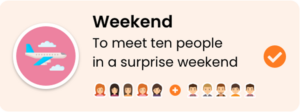
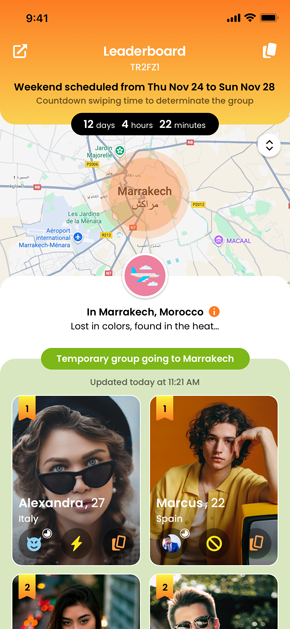
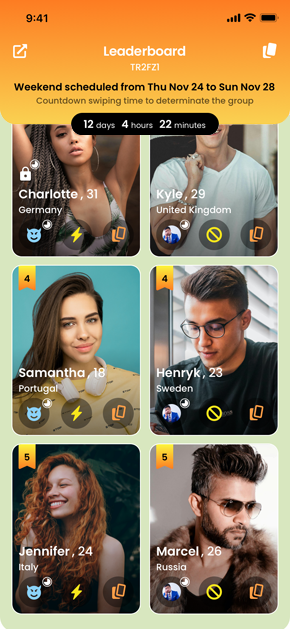
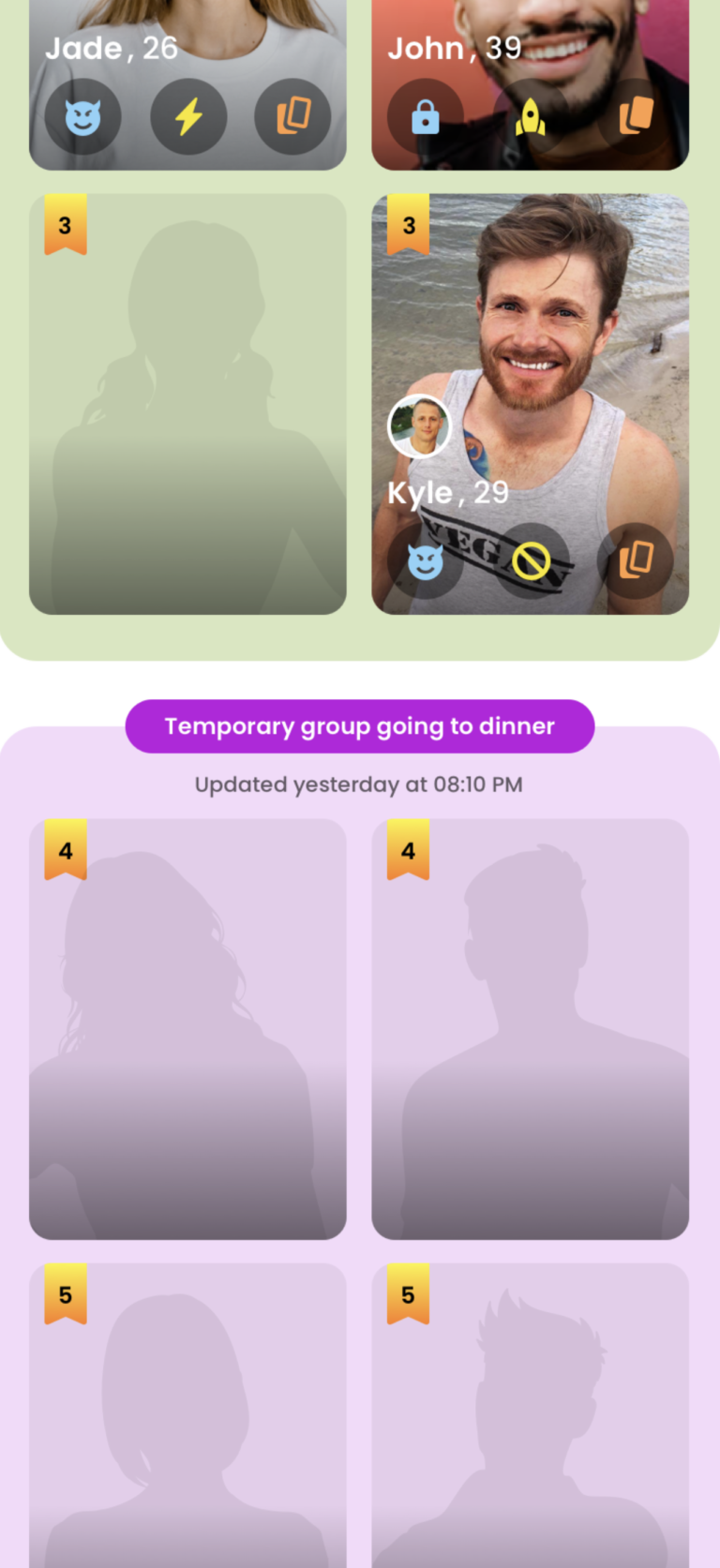
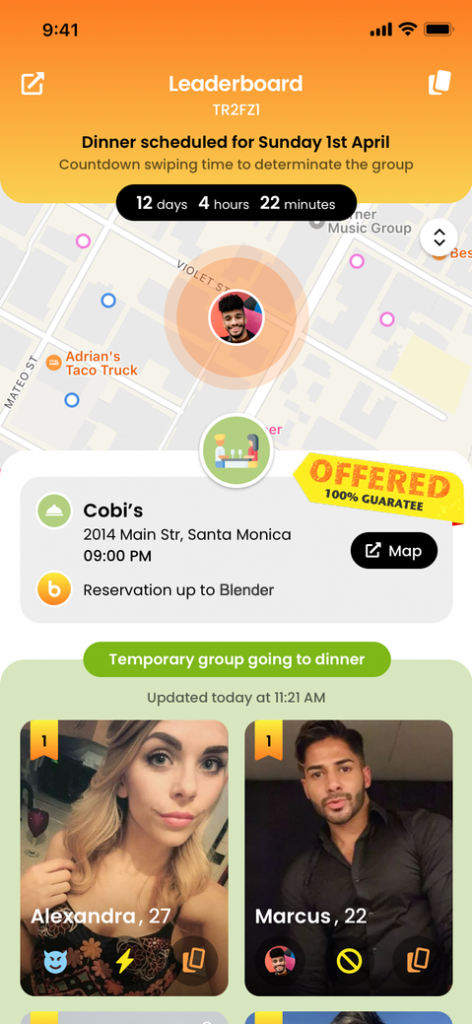
Fünf Mädchen und fünf Jungs bekommen genug Swipe nach rechts, um an die Spitze der Rangliste zu kommen und gemeinsam für ein Überraschungswochenende wegzufliegen.
Zuerst öffne das Hauptmenü und wähle „Weekend“. Schließe dann das Menü und beginne mit dem Wischen.
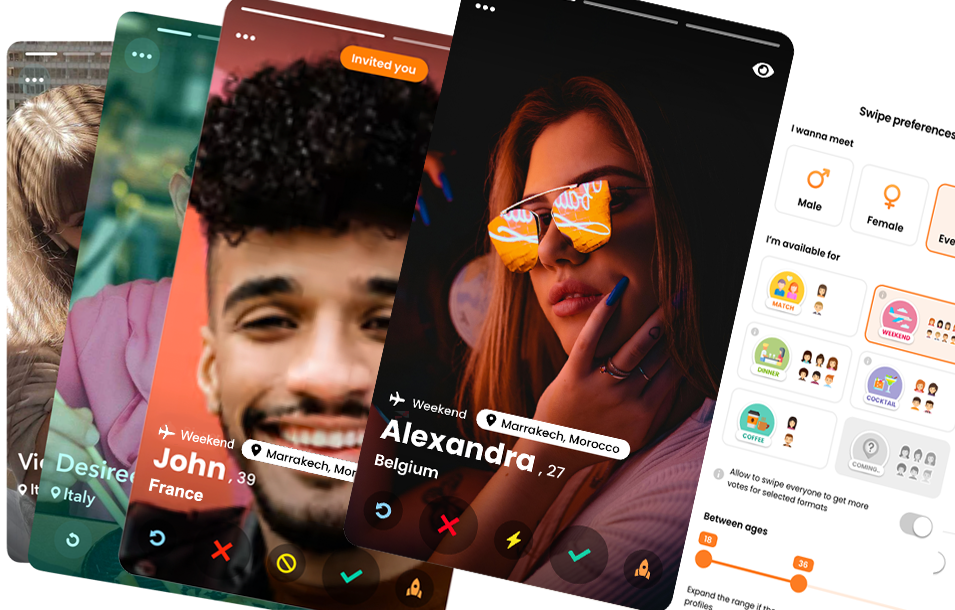
Wenn du in den Swipe-Einstellungen festgelegt hast, dass du für ausgewählte Formate alle Profile wischen kannst, siehst du Profile beider Geschlechter, wobei die Präferenz für das Geschlecht gilt, das du treffen möchtest. Es wird empfohlen, diesen Schalter immer einzuschalten, da du so die Chancen erhöhst, mehr Stimmen zu erhalten. Außerdem kannst du entscheiden, wen du unter deinem eigenen Geschlecht während des Wochenendes treffen möchtest.
Aktionen auf Karten: Sehen wir nun, was du auf den Profilkarten machen kannst.
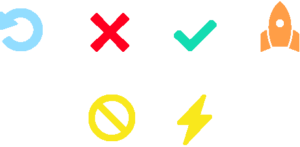
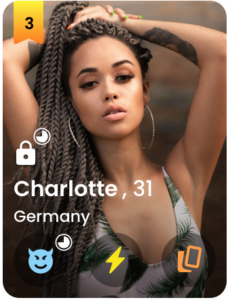
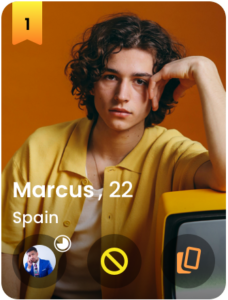
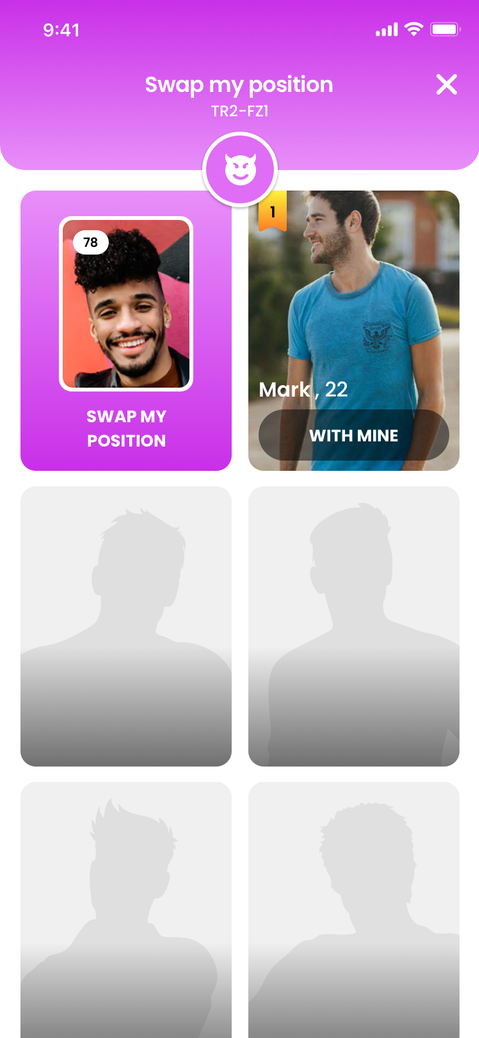
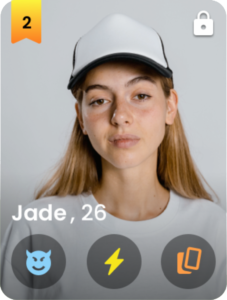
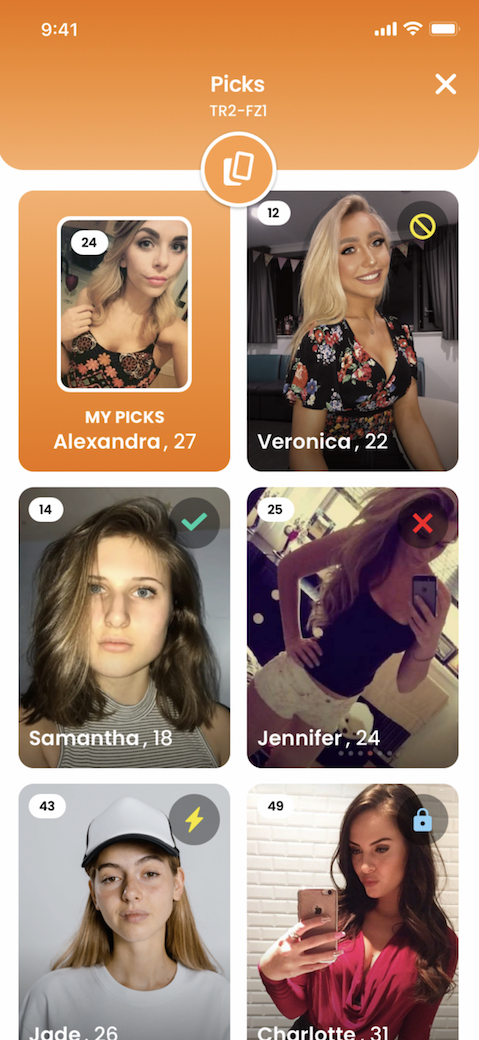
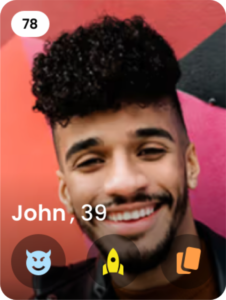
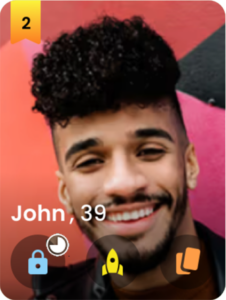
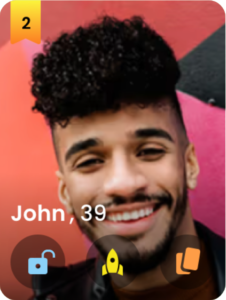
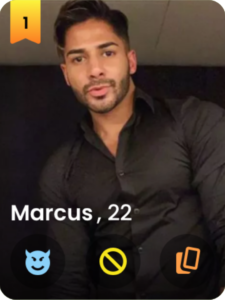
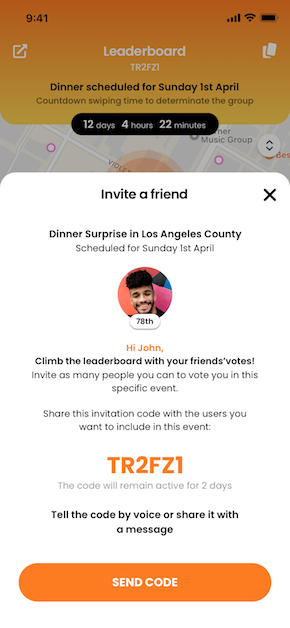
Rechts wischen oder auf den „Ok“-Button drücken gibt einen positiven Punkt, links wischen oder auf „No“ drücken gibt einen negativen Punkt. Wenn eine Stadt auf der Profilkarte hervorgehoben ist, bedeutet das, dass diese Person für dasselbe Wochenende wie du in derselben Stadt, zur selben Zeit und in derselben Unterkunft spielt. Ist sie nicht hervorgehoben, vergibst du Punkte für ihr Wochenende in einer anderen Stadt, wo du eventuell landen könntest, wenn du reisen möchtest. Wenn du nach unten wischst oder den „Ban“-Button benutzt, gibst du einen zusätzlichen negativen Punkt, wenn du nach oben wischst oder den „Flash“-Button benutzt, gibst du zusätzliche positive Punkte. Wenn jemand dein Flash erwidert, bekommst du ein Instant Match, auch wenn du für das Wochenende wischst. Wenn du auf einer Profilkarte „Invited You“ siehst, bedeutet das, dass ein Freund dich eingeladen hat, für ihn oder sie positiv abzustimmen. Mit dem Boost-Button kannst du dein Profil für eine halbe oder eine Stunde super beliebt machen und einer erstaunlichen Anzahl von Personen gezeigt werden, um deine Punkte zu erhöhen oder einen Flash zurückzubekommen und ein Match zu erhalten.
Wenn du die Flash-Funktion auf einen Benutzer anwendest, passiert Folgendes: Erstens gibst du ihm/ihr einen großen Punktebonus, indem du ihn/sie im Leaderboard nach oben schiebst, zweitens wird der Benutzer über deinen Flash informiert, und du kannst ihn/sie auch während des Wochenendspiels beeindrucken. Wenn er/sie den Flash erwidert, bekommst du ein Instant Match und kannst einen privaten Chat starten.
Boost
Die Boost-Funktion kannst du nur für dich selbst nutzen, indem du dein Profil für 30 Minuten bis eine Stunde super beliebt machst. Wenn dein Profil beliebt ist, erhältst du im Durchschnitt dreimal so viele Stimmen, da es einer großen Anzahl von Personen angezeigt wird.
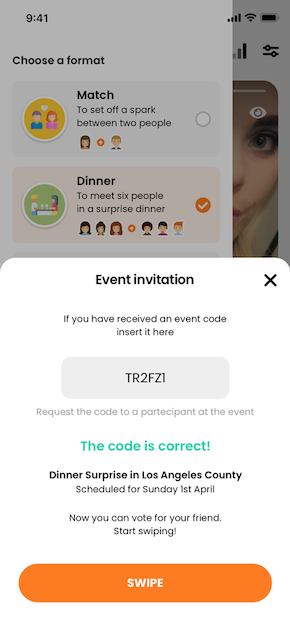
Freunde oder eingeladene Personen können den Event-Code entweder während der Registrierung oder jederzeit über das Seitenmenü und den Link „Event Code“ einlösen.
My Games
Wenn du ein Format aus dem Seitenmenü ausgewählt hast, drehen sich alle App-Bereiche und Informationen um dieses Format. Im zweiten Tab der Menüleiste findest du alle Wochenenden, für die du spielst.
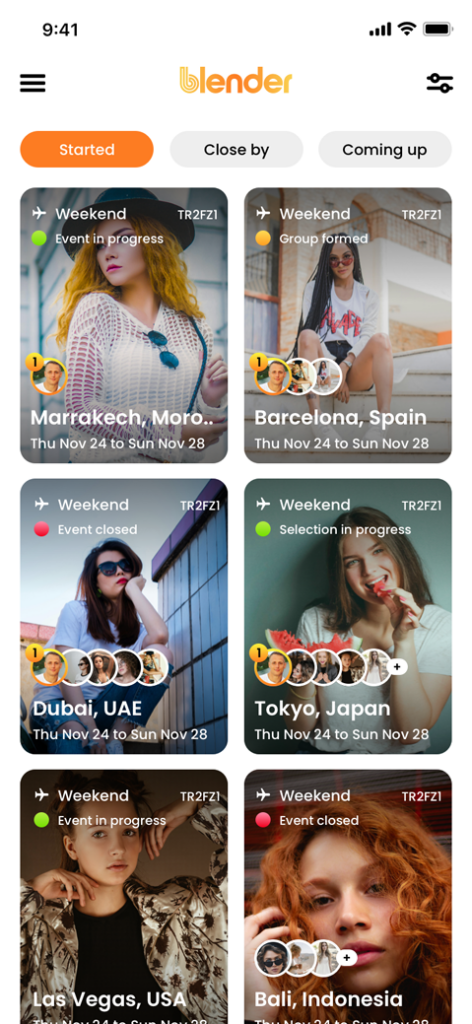
Es kann nur eins sein, wenn du dich nicht von einem bestimmten geografischen Bereich entfernt hast, oder viele, wenn du ständig reist. Jedes Mal, wenn du auf einen anderen Kontinent ziehst, spielst du für ein neues Wochenende in einer anderen geografischen Region. Im Abschnitt „Games Started“ oder „Weekends Started“ findest du alle, an denen du teilnimmst, und durch Klicken auf eines davon beginnst du, für diese geografische Region und den spezifischen Event-ID-Code zu wischen. „Weekend Started“ kann in vier Zuständen sein:
Selections in progress (grünes Licht): Der Countdown zum Wischen der Profilkarten ist noch aktiv, alles kann noch auf dem Leaderboard passieren.
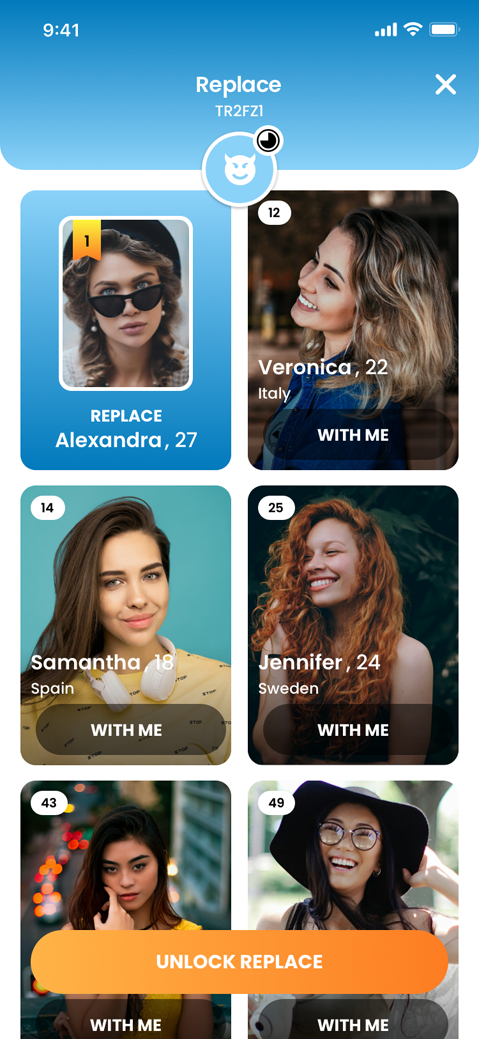
Group formed (oranges Licht): Die Auswahl ist abgeschlossen und eine Gruppe für ein Wochenende wurde gebildet. Die Gewinner haben einen weiteren Countdown, um ihre Teilnahme zu bestätigen oder abzulehnen. Wenn jemand ablehnt, wird er von Blender ersetzt (6., 7., … Benutzer) bis die Gruppe vollständig ist. In diesem Zustand können die 10 Gewinner miteinander chatten, sich kennenlernen, arrangieren, Unterkunft wählen & buchen.
Event in progress (grünes Licht): Es ist Wochenende. Der Chat ist immer verfügbar.
Event Closed (rotes Licht): Das Wochenende ist vorbei, der Chat bleibt noch einige Tage verfügbar. Auch wer nicht in der Gewinnergruppe ist, kann auf diesen Bereich zugreifen, jedoch nicht interagieren, nur beobachten. Der Abschnitt „Weekend Started“ bietet auch Zugang zur Liste der „Close By Weekends“ und „Coming Up“, also Wochenenden mit der Teilnahme am nächsten zum aktuellen Tag. Kurz gesagt: Aus diesem Bereich der App hast du praktisch endlose Möglichkeiten. Wenn du z. B. in den kommenden Tagen umziehst, kannst du ein Wochenende in dieser Region suchen, oder wenn du sofort für ein Wochenende losfahren willst, kannst du die „Coming Up“-Wochenenden durchsuchen. Beachte, dass du, wenn du an einem Wochenende außerhalb deiner aktuellen Geo-Region teilnimmst, mindestens 12 Stunden vor Eintritt in den Status „Group Formed“ dort sein musst, sonst wirst du automatisch von Blender ersetzt. Ziel ist es, alle Wochenenden erfolgreich zu machen.
Winning Group
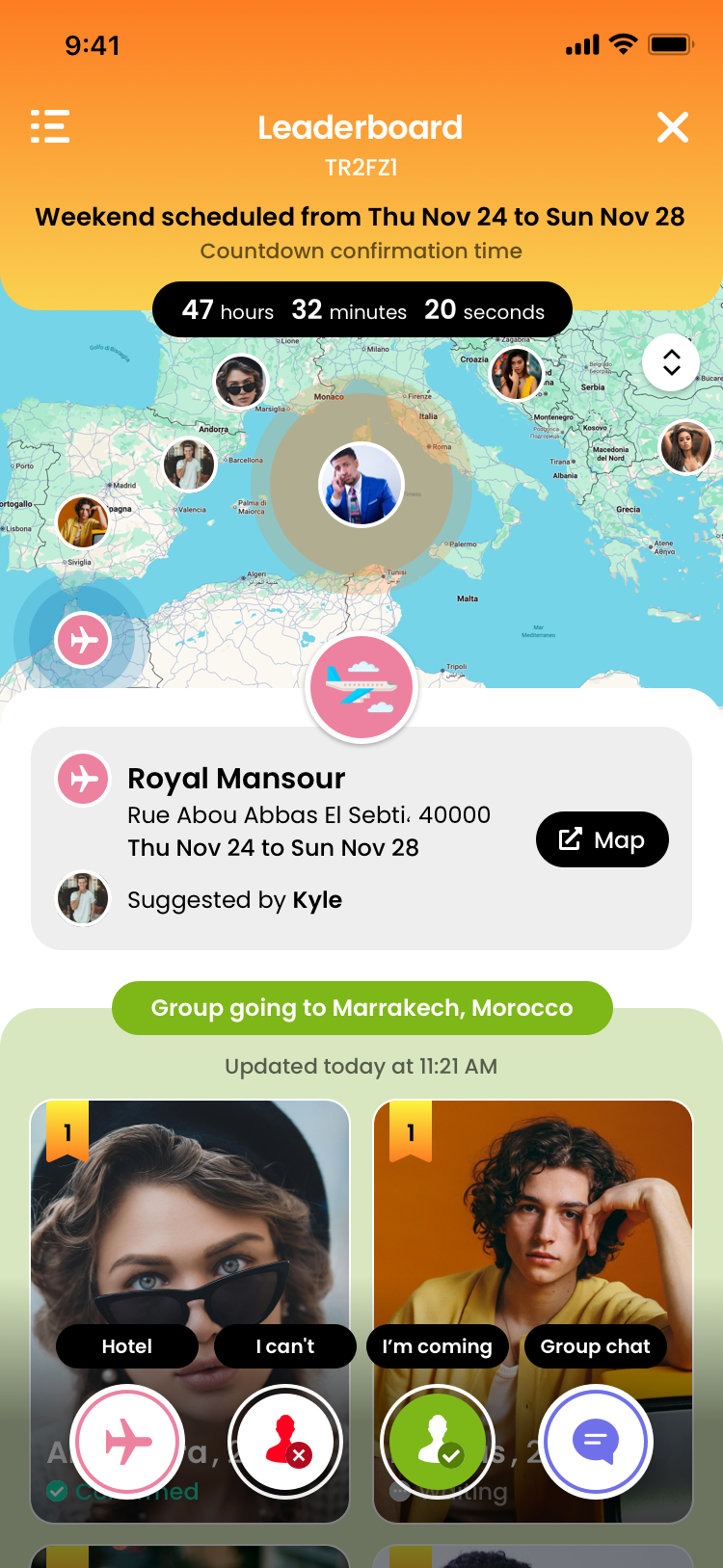
Am Ende des Countdowns für das Wischen der Profile, wenn du dich in einer der Gewinnpositionen auf dem Leaderboard befindest und somit in der Gruppe bist, die zum Wochenende fährt, kannst du auf das Leaderboard für die Gewinnergruppe zugreifen. Oben findest du einen neuen Countdown namens „countdown confirmation time“: Dies ist die Zeit, die du noch hast, um zu entscheiden, ob du am Wochenende teilnehmen möchtest oder nicht. In diesem Abschnitt hast du drei Optionen:
Akzeptieren oder ablehnen (wenn du ablehnst, wirst du durch einen anderen Benutzer ersetzt).
Das Hotel auswählen
Mit der gesamten Gewinnergruppe chatten
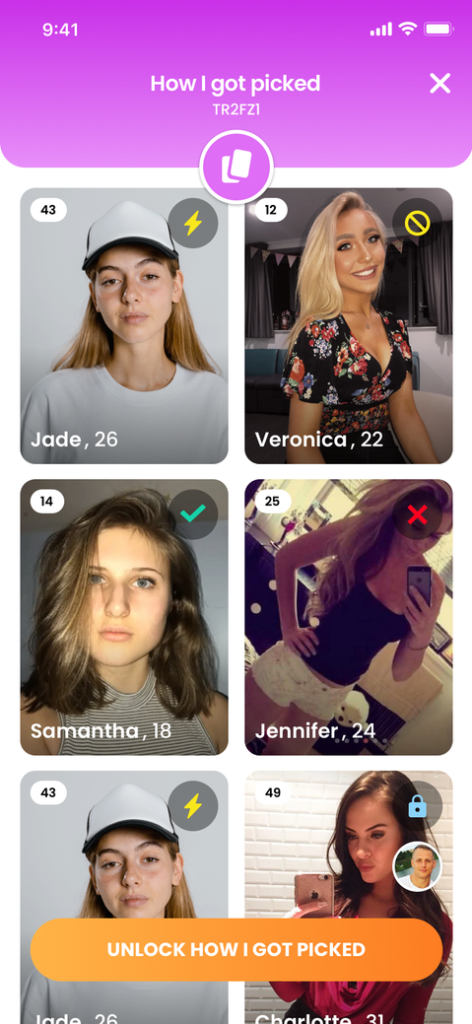
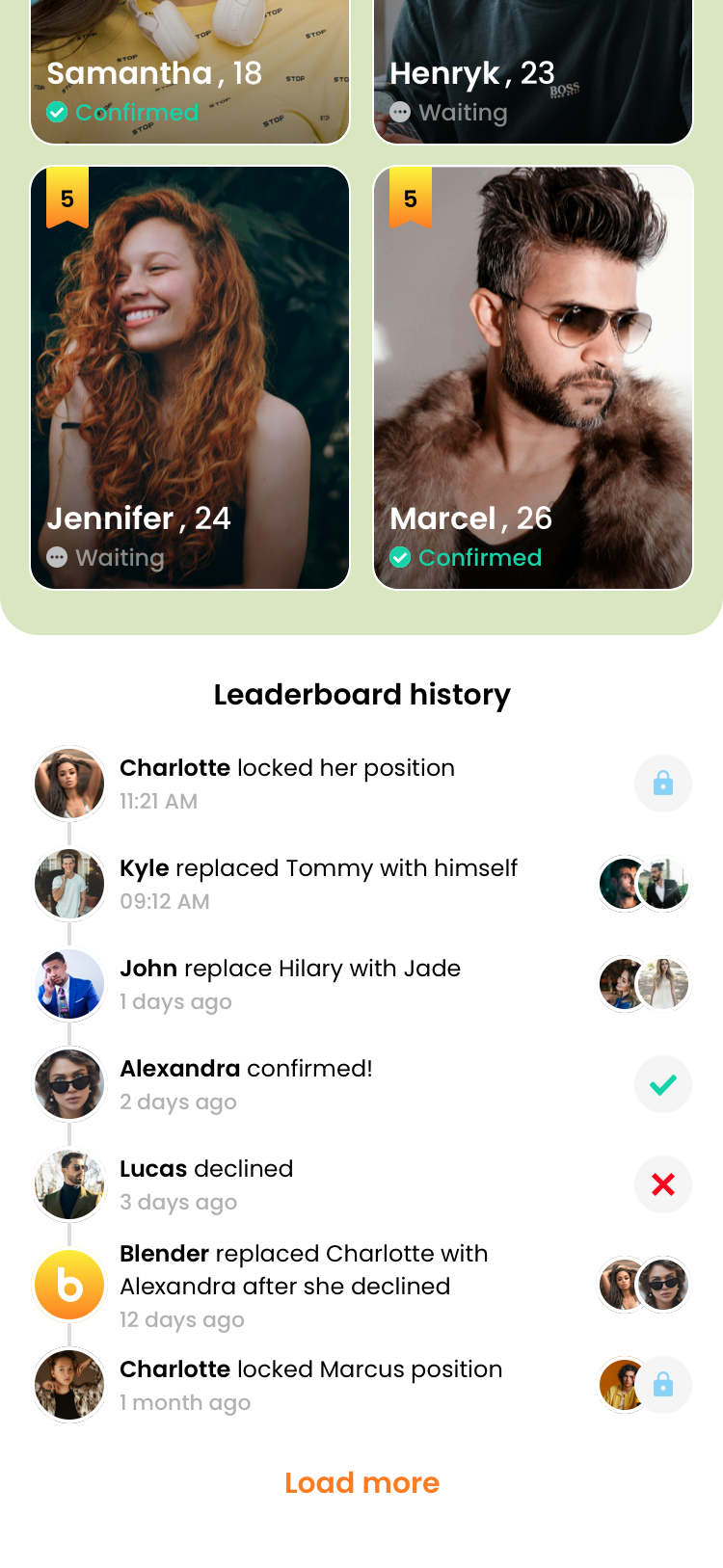
Auf jeder Gewinnerkarte findest du wichtige Informationen wie „has confirmed“, „waiting to respond“, „has declined and has been replaced by someone“. Unten auf dem Bildschirm findest du die Leaderboard-Historie mit allem, was für diese Event-ID passiert ist oder passiert: Wer die Teilnahme mit Lock gesichert hat, wer wen ersetzt hat usw.
Accommodation
Jeder kann die Unterkunft/das Hotel auswählen, indem er auf das Hotelsymbol klickt. Die Person, die das Hotel auswählt, kümmert sich nur um ihre eigene Buchung. Gleiches gilt für die gesamte Gruppe. Der Unterkunftsvorschlag sollte im Chat geteilt werden und kann während des „countdown confirmation time“ jederzeit von jemand anderem überschrieben werden.
Group Chat
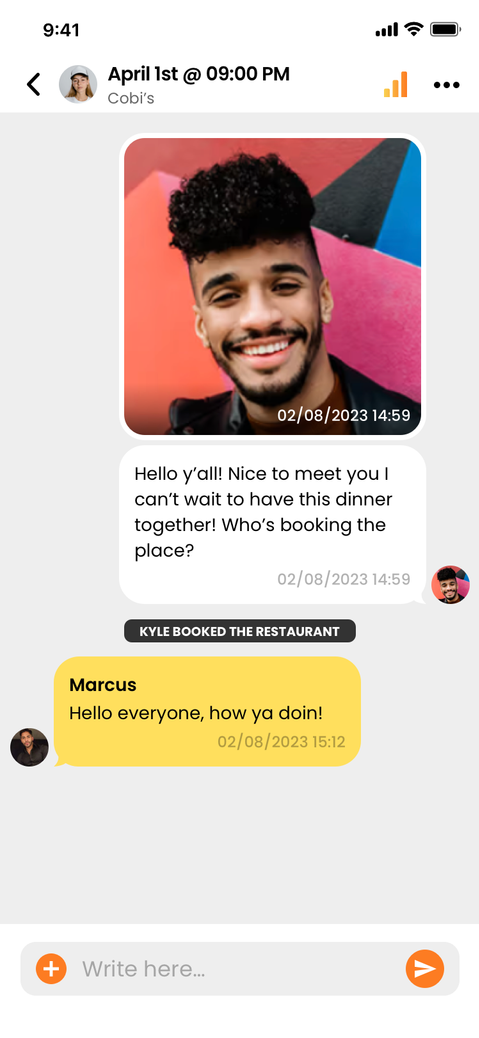
Klicke auf das Chatsymbol, um den Gruppenchat zu öffnen. Du findest alle Gruppen- und Match-Chats im Chatbereich von Blender.
GOOOOOOO
Jetzt ist es Zeit zu gehen. Nimm dein Auto, dein Motorrad, dein Fahrrad, den Bus, die U-Bahn, gehe zu Fuß… egal wie, aber geh zum Flughafen und hab den größten Spaß deines Lebens!
More Winning Groups
Gewinnergruppen, die aus drei Frauen und drei Männern bestehen, können mindestens eine, höchstens drei Gruppen sein. Von Position 1-5 die erste Gruppe, 6-10 die zweite, 11-15 die dritte. Unter 50.000 Teilnehmern gibt es nur eine Gruppe, von 50.000 bis 150.000 zwei Gruppen, ab 150.000 drei Gruppen. Jede Gruppe hat ihr eigenes privates Gewinner-Leaderboard.
Offered by blender
Bei über 1 Million Teilnehmern an einem Wochenend-Event wird die Unterkunft von Blender gestellt, der eines der angesagtesten Hotels der Region auswählt und im Voraus bezahlt. Wenn dies passiert, findest du einen Sticker mit „offered by Blender“. Das ist ein guter Grund, möglichst viele Leute einzuladen. Sei vorsichtig, keine Fake-Accounts oder Bots zu erstellen, denn sobald das System sie erkennt, werden sie gelöscht, ebenso wie der Account, der sie erstellt hat.